On this page
Before you start
Chronicle works without an account and without AI. You can begin with Continue local, capture versions, search filenames and notes, and restore work on your device.
A Windows x64 PC or Apple Silicon Mac, one folder containing creative work, and a supported file. PNG and JPG are the safest formats for your first walkthrough.
1. Download and install Chronicle
- Open the official Chronicle release page.
- Download the Windows installer or the Apple Silicon Mac DMG.
- Open the download and follow the installer.
The current installers are not digitally signed. First, make sure your download came from the official Chronicle GitHub Releases page and that its version matches the release. You can then bypass the expected trust warning by following the Windows instructions or Mac instructions. Do not continue if your computer reports malware or the download came from another source.
2. Choose how to enter
Select Continue local for the quickest start. Your creative history remains on this computer. Sign-in is optional and adds account-backed features; it never unlocks the core versioning workflow.
3. Choose a folder to watch
- Select New project.
- Choose the folder where you normally save creative work.
- Review the files Chronicle found.
- Leave PNG and JPG enabled for this first test, then create the project.
Cloud-synced folders can save files in unusual ways. Test with a folder in Documents or Pictures before adding OneDrive, Dropbox, or a network drive.
4. Capture the first version
- Open a PNG or JPG from the watched folder in your usual creative app.
- Make a visible change and save normally.
- Return to Chronicle. A new version should appear after the file finishes saving.
- Open the asset to see its Timeline.
The project screen shows your four most recently changed files first, then the project's own folders. Open a folder to go deeper, use the breadcrumb at the top to come back, and switch between gallery and list layout with the toggle beside the file list. Chronicle remembers the layout you prefer.
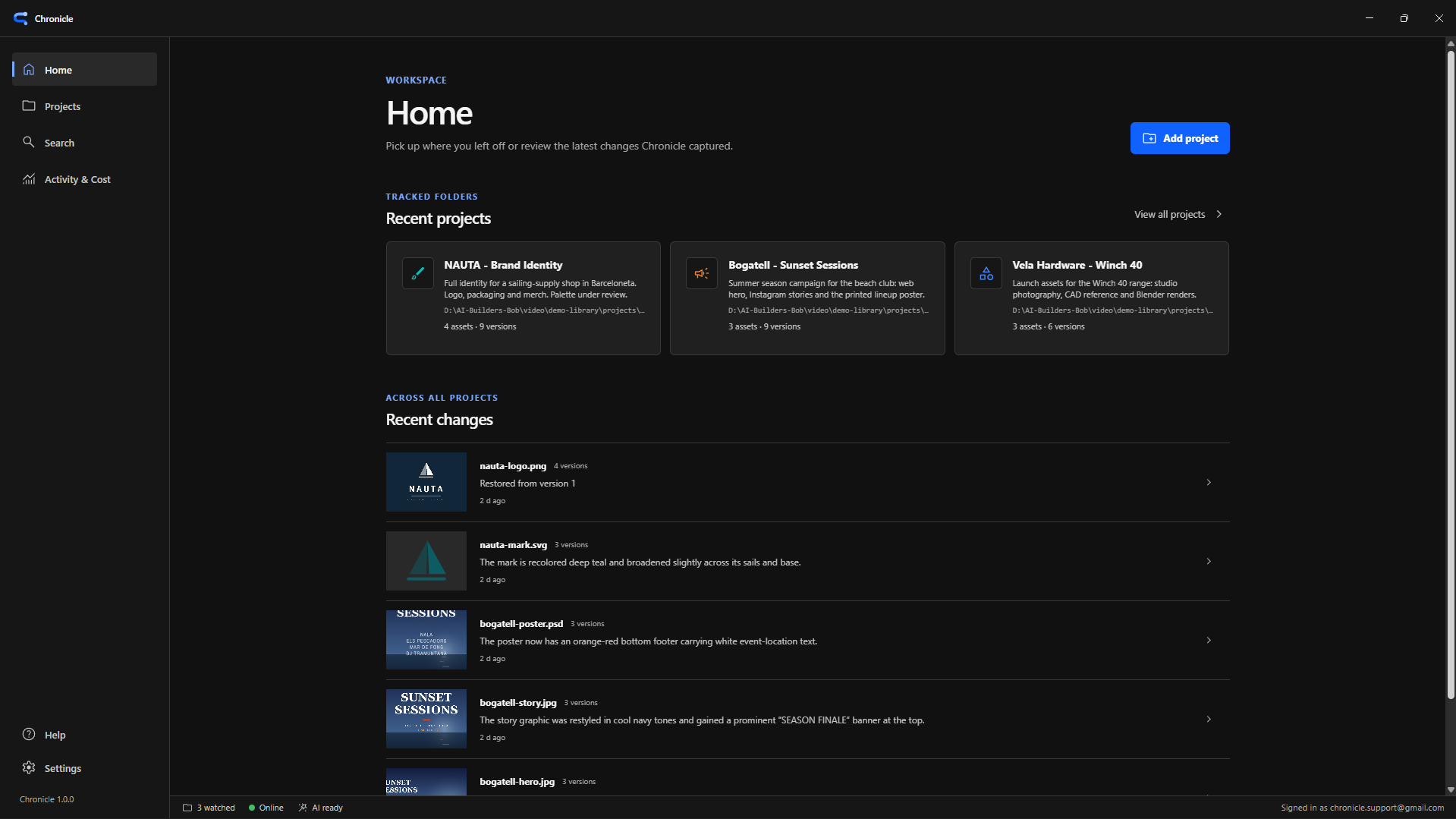
5. Add AI only if you want it
AI change summaries and meaning-based search require an internet connection and your selected provider. Open Settings → AI summaries, save a key under Provider API keys, then choose a provider and model for Change summaries (vision) and for Semantic search (embeddings).
Provider validation makes a small real request and may incur a small charge. If you skip AI, Chronicle continues capturing versions and keyword search remains available.
6. Check search and restore
- Search for the filename or a phrase from the version description.
- Open a result and select an older version.
- Use Save a copy when you only want to inspect it.
- Use restore only after checking the destination. Chronicle preserves history, but keeping a copy is the least surprising first test.